Your Data Table is where all your project information lives — lot numbers, prices, sizes, availability and more. Columns define what information you track.
Open Your Data Table
Click your project card from the Dashboard to open the project dashboard.
Your Data Table is displayed here, with your data points as rows.
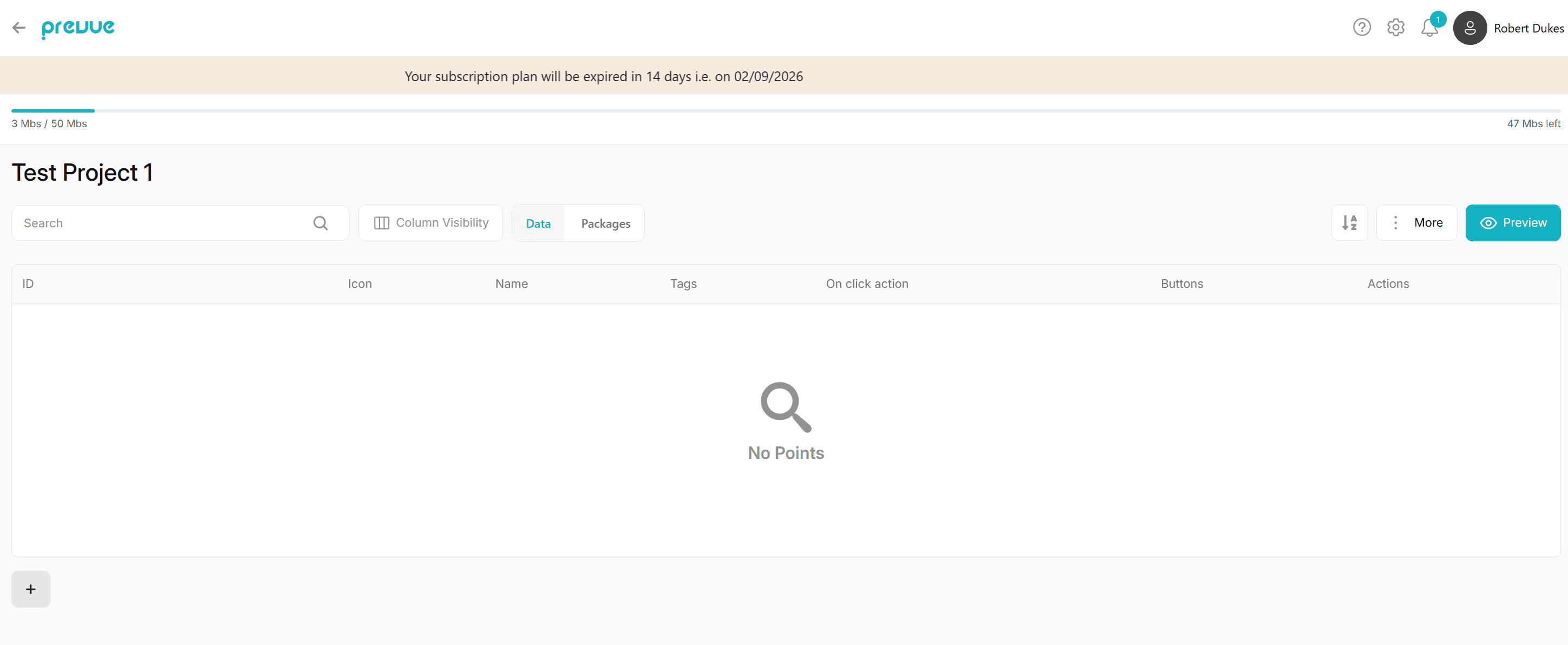
Add a Column
Click the [+ Add Column] button.
Give your column a Name (e.g. "Lot 01").
Select an Icon type (e.g. "Availability - and Available")
Select a Click on action (e.g. "Popup")
Column Types
Type | Best For |
|---|---|
ID | Unique reference for each row. Handy for matching data to points on your map. |
Icon | Small marker icon shown on the map point. Pick from the icon library or upload your own. There is also Live availability and Shape Tools with custom colours. |
Name | The display name for the clickable hotspot. Shows as the popup title. |
Image | Photo or render shown in the popup. Great for renders, floorplans, or aerial shots. |
Type | Can be any type to label to add to the listing. |
Description | Short blurb shown in the popup. |
Level | Which floor or level the unit sits on. Best for multi-storey projects. |
Aspect | Orientation of the lot or unit, like North or East-facing. |
Beds | Number of bedrooms. Shows as a quick stat and works as a filter. |
Baths | Number of bathrooms. Same deal — stat plus filter. |
Living | Number of living areas. |
Car | Number of car spaces or garage bays. |
Price | Asking price. This will be hidden on Sold availability Status. |
Width | Lot frontage width, usually in metres. |
Depth | Lot depth, usually in metres. |
Tags | Flexible labels like Waterfront, Corner Lot, or Stage 2. Great for filtering and highlights. |
Internal Size | Internal floor area of the home or unit. |
On Click Action | hat happens when someone clicks the point — open a popup, link out, linking to a different background image. |
Size | Total lot or space size, usually in square metres. |
Buttons | Custom call-to-action buttons in the popup, like Enquire Now or View Floorplan. |
Download File | Attach a PDF or file to the popup, like a brochure or plan. |
Packages | Link house and land packages (or similar bundles) to a row. One package can link to multiple rows. Available on higher tiers. |
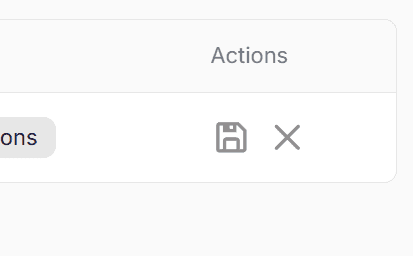
Press the Save Icon to save the data

Edit or Remove a Column
To edit a row, click the "Pencil" Icon
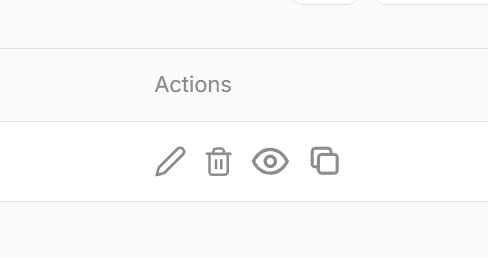
Deleting a row removes its data from all rows — this can't be undone.
Tips
Keep row names short — they display as labels on your live viewer.
Set up all your columns before bulk-entering data — it's faster than adding them one at a time later.