Once you have signed up and logged in, you can easily create a new project on a Trial Plan.
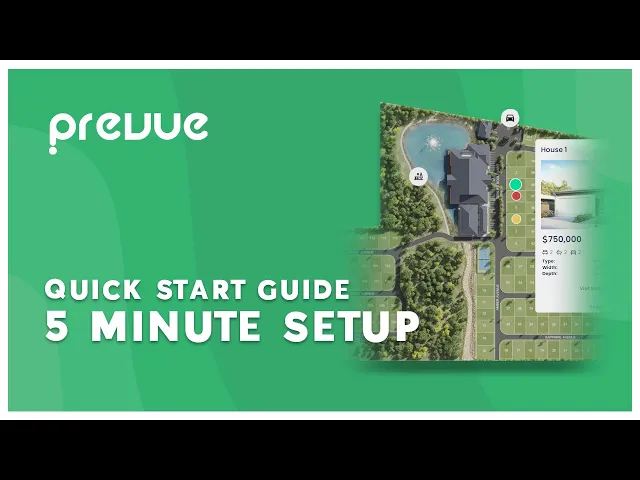
Step 1: Create a New Project
→ Click "+ Create your First Project" .
→ Give it a "Project Name"
→ Upload your "Project Background Image".
Feel free to add any more details for your project such as contact details, a privacy policy, terms and conditions, project logo or more.
You can also, add 360 Panorama's by uploading them as a background and ticking the 3d mode check box on the image, or enter a site address to use the Map Box integration feature.
Step 2: Select a Subscription Plan
For this tutorial we can select the Free Trial Plan.
Step 3: Add Your First Point
→ Click your newly created project card to go to the project dashboard.
→ Click the "+" button to add a data point row.
→ Select an Icon and type a Name.
→ Press the Save icon to confirm the point.
Step 4: Add the Point to your Background Image
→ Click the "…More" button and select "Edit Project".
Here you can:
Left Click on your background image to Place a point from the popup list.
Right Click and Hold to Pan and Move on your background image
Scroll Wheel to zoom in and out on your background image
→ Once done, you can go back by pressing the Back Arrow in the top left of the page
Step 5: Preview & Share
Click the green "Preview" button to test your project → now you can share the link or embed it into your website.
Done!
Your interactive image is now live - update anything anytime from the Data Table and it will sync instantly on your live map.